Table of Contents
EMI FALCON User’s Manual
1. General Information
1.1 Documentation
Enclosed with this manual are:
- a service questionnaire to send back to EMZER in case an equipment service is needed (end).
- an accessories checklist to verify all accessories enclosed in the packaging.
1.2 Introduction to EMI FALCON
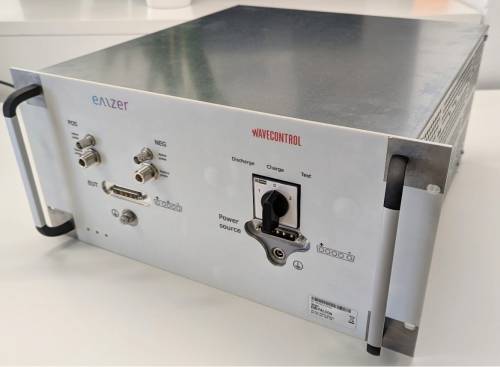
Figure 1. EMI FALCON picture.
The ElectroMagnetice Interference Fast Acceptance Lane for Compliant ON-boarding (EMI FALCON) is an innovative electromagnetic compatibility (EMC) test instrument designed to reduce the time, complexity and cost of EMC acceptance tests on flying space equipment.
Its main characteristics are:
- It integrates different test setups, reducing the complexity to a minimum.
- It provides a very simple and smart interface, able to evaluate the test result as PASS or FAIL, so no EMC specific competences are needed.
- It features unprecedented test capacity and speed.
- It simultaneously measures the positive and negative lanes conducted emissions, or the common-mode and differential-mode (modal) emissions. Modal-emission measurements are fundamental to know the dominant mode and to implement the suitable power-line filter accordingly, using fewer components and getting a faster, cheaper and better design.
- It can be connected to a LAN or reached by direct connection, and it is remotely controlled using any standard web browser, without the necessity of any additional software. The web-based application installed in FALCON exhibits a very friendly and intuitive interface that makes any kind of measurement really easy to be configured.
Important! Before using the LISN, all safety requirements must be fulfilled.
1.3 Instrument Items
FALCON includes the following items:
- FALCON enclosure containing two EMI-Test Receivers, a LISN according to ADS SPEC, Transient Limiters and an EUT's Power Supply switch.
- Current probes:
- Hioki Hioki 3273-50.
- Tekbox TBCP2-30K400.
- MSA Compliant Gigabit Copper RJ45 SFP Transceiver (1000Base-TX, 100m).
1.4 Main Specifications
Table 1-1 lists the EMI Falcon performance specifications.
| Table 1-1 Main Specifications of the EMI Receiver | |
|---|---|
| Electrical Characteristic | Performance Limits |
| Frequency range / RBW Filter Resolution / RBW Filter Frequency accuracy | 30 Hz to 1 kHz / 10 Hz 1 kHz to 10 kHz / 100 Hz 10 kHz to 150 kHz / 1 kHz 150 kHz to 30 MHz / 10 kHz 30 MHz to 50 MHz / 100 kHz 1.86 Hz / 10 Hz 14.9 Hz / 100 Hz 238.4 Hz / 1 kHz 5086 Hz / 10 kHz 24.4 kHz / 100 kHz ≤ 2.5 ppm @operating temperature range = 1.5 ppm @ 25ºC |
| RF inputs VSWR (50-Ω input) Gain Input attenuation (50-Ω input) Transient limiter (50-Ω input) | ZIN 50 Ω, N fem. ZIN 1 MΩ / 5 pF, BNC fem. < 1,2 0 dB to 60 dB (1 dB step) 20 dB, 10 dB and 0 dB Built in up to 50 MHz (except for 0 dB of input attenuation). 1dB compression point: 23 dBm (10 dB of input attenuation) / 33 dBm (20 dB of input attenuation). |
| Max input level (without equipment damage) | 144 dBμV (5 W, 37 dBm) (50-Ω input) 75 V (1-MΩ input) |
| Noise level (Gain 40 dB, 50 Ω term., Hold Time 1 s) 10 Hz to 1 kHz (10 Hz RBW) 1 kHz to 10 kHz (100 Hz RBW) 10 kHz to 150 kHz (1 kHz RBW) 150 kHz to 30 MHz (10 kHz RBW) 30 MHz to 50 MHz (100 kHz RBW) | < 7 dBμV < 10 dBμV < 20 dBμV < 30 dBμV < 42 dBμV |
| Detectors | Peak |
| Type of measurements | Physical (or circuit, i.e. positive and negative) and modal (common and differential mode) conducted emissions |
| Full spectrum measurement time | Dwell time x 5 (dwell time is totally configurable between 1 s and 15 s |
| Display units | dBm, dBmV, dBµV, dBµA, Watts, Volts, Amperes |
| I/O Interface | SFP |
| Operating temperature | 0 °C to 40 °C |
| Power supply | 110-240 VAC. Consumption: 25W max |
1.5 Front Panel
The front panel of the EMI FALCON is shown in the next figure.
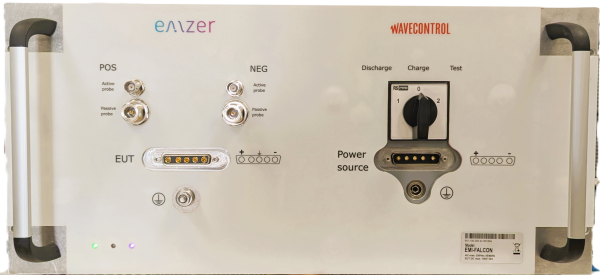
Figure 2. Front panel.
Connectors and indicators of the front panel from top to bottom and from left to right:
- RF input 1 MΩ (BNC-female) / 50 Ω (N-female) connectors
The equipment features two N-female BNC input connectors (1 MΩ) that enable simultaneous measurement with two RF active current probes—one for the positive wire and one for the negative wire. Additionally, it includes two N-female RF input connectors (50 Ω) for simultaneous measurement with two RF passive current probes, also configured for positive and negative wire measurements. The two N-female BNC inputs are internally protected against transient voltages using a transient limiter. The two N-female RF inputs offer three input attenuation options: 20 dB, 10 dB, and 0 dB. The first two options (20 dB and 10 dB) include transient voltage protection, whereas the 0 dB attenuation option does not provide such protection.
- 5W5 D-Sub female connector.
This socket is the output of the EUT's power switch. It is the mains socket where the equipment under test (EUT) must be connected to allow the measurement of its conducted emissions.
- Protective earth terminal. It is a M6 threaded bolt for connecting the protective earth conductor.
- LEDs.
- LISN Switch with the three available options: Charge, Discharge and normal operation.
- 5W5 D-Sub male connector, to connect to the Power Source.
- Protective earth terminal. It is a M6 threaded bolt for connecting the protective earth conductor.
The technical specifications of the LISN and its power handling capabilities are described under the Main specifications section.
1.6 Rear Panel
The rear panel of the equipment is shown in the next figure:
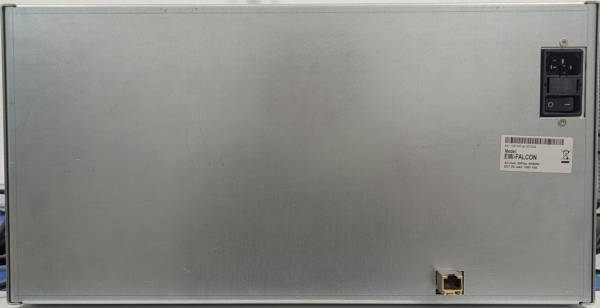
Figure 3. Rear panel.
Connectors of the rear panel from top to bottom:
- SFP connector. The installed SFP transceiver is described in the Instruments Items section.
- Instrument power supply socket. It includes fuses and the On-Off switch.
2. Safety information
2.1 General safety information
Never remove the cover or any part of the housing. During operation, there exists accessible parts with DANGEROUS voltages inside the unit.
Do not insert any objects into the openings of the housing that are not intended to that purpose. This can cause short circuits inside or electric shocks/injuries.
The unit is not protected against the penetration of liquids. Do not close any of the openings needed for ventilation.
The unit must be placed on a non-flammable base in order to prevent a fire in case of overheating.
3. Installation
3.1 Introduction
This section provides the information needed to install your EMI FALCON. It includes the information pertinent to initial inspection and power requirements, connections, operating environment, instrument mounting, cleaning, storage and shipment.
Important! Before connecting the equipment follow the provided Safety information section. Not following it can result in important damages.
3.2 Initial Inspection
When receiving the equipment, first inspect the shipping box for any damages. If the shipping box is damaged, it should be kept until the contents of the shipment have been checked for completeness and the instrument has been checked mechanically and electrically.
3.3 Packing and Unpacking
Verify the availability of all the shipped items with reference to the shipping check list enclosed with the User Manual. Notify any damage to the forwarder personnel as well as to your EMZER/Wavecontrol Representative.
To avoid further damage, do not turn on the instrument when there are signs of shipping damage to any portion of it.
3.4 Preparation for Use
The EMI FALCON is a Safety Class I apparatus, and it is also equipped with protective/functional earth terminals on the front panels. A good safety/functional ground connection should be provided before to operating the system.
3.5 Power Supply
The universal adapter included with the receiver operates at both 50 Hz and 60 Hz, with a supply voltage range of 100 to 240 V.
When the power supply is turned on, the green LED on the left illuminates. After approximately 45 seconds (depending on network conditions), the EMI FALCON is ready for use.
3.6 Front Panel LEDs
The front panel of the EMI FALCON has three LEDs, which provide some information to the user:
- The leftmost green LED is switched on when the EMI FALCON is powered on.
- The middle yellow LED blinks according to the network activity.
- The rightmost LED is fixed green and switches on when the EMI FALCON is ready to operate. It switches to purple when a user connects, and returns to green when the user disconnects.
3.7 Environment
The operating environment of the receiver is specified to be within the following limits:
- Temperature : 0 °C to +40 °C
- Humidity : < 85% relative LISN; < 95% relative EMI receivers
- Altitude : 3000 meters
The instrument should be stored and shipped in a clean, dry environment which is specified to be within the following limitations:
- Temperature : -40 °C to +50 °C (-40 °C to +40 °C for long periods)
- Humidity : < 95% relative (< 80% relative for long periods)
- Altitude : 15000 meters
3.8 Return for Service
If the instrument should be returned to EMZER/Wavecontrol for service, please complete the service questionnaire enclosed with the User Manual and attach it to the instrument.
To minimize the repair time, be as specific as possible when describing the failure. If the failure only occurs under certain conditions, explain how to duplicate the failure.
If possible, reusing of the original packaging to ship the equipment is preferable.
In case other package should be used, ensure to wrap the instrument in heavy paper or plastic.
Use a strong shipping box and use enough shock absorbing material all around the equipment to provide a firm cushion and prevent movement in the shipping box; in particular protect the front panel.
Seal the shipping box securely.
Mark the shipping box FRAGILE to encourage careful handling.
3.9 Equipment Cleaning
Use a clean, dry, non-abrasive cloth for external cleaning of the equipment.
To clean the equipment do not use any solvent, thinner, turpentine, acid, acetone or similar matter to avoid damage to external plastic or display surfaces.
3.10 Equipment Ventilation
To allow correct equipment ventilation, ensure that the vent grids on the side and on the bottom of the equipment are free by any obstructing object.
3.11 Hardware Installation
EMI FALCON is delivered from factory ready to use. After removing the instrument from its cardboard shipping box, the user must perform the following connections before switching it on:
- Connect the EMI FALCON to the suitable networking technology. To this end, connect the instrument to one of the following options:
- The user’s Local Area Network (LAN), using a UTP Ethernet cable. In this case, the Ethernet connection is a Gigabit Ethernet.
- The remote computer (direct cable connection).
- Connect the instrument to the power-line network from the rear panel using a IEC 14 cable.
After having done these connections, the instrument can be switched on using the Power button properly. When doing this, the front green led lights up to indicate the instrument is correctly powered.
During a few seconds, the EMI FALCON boots and runs the firmware which manages the receiver. Once the web server is ready, the yellow led is switched on, informing that the receiver is ready to use.
3.12 Web Connection
3.12.1 Dynamic configuration
EMI FALCON is a network attachable device focused on simple connectivity and quick accessibility, and it does not require the installation of any additional software:
- When connected to a typical LAN where there is a DHCP server (i.e., a router), the EMI FALCON will automatically acquire an IP address.
- If the direct cable connection option is opted, or the LAN has no DHCP server, the EMI FALCON will automatically assign itself an IP address (it uses the IPv4LL, «Dynamic Configuration of IPv4 Link-Local Addresses» -IETF RFC3927- protocol).
In either case, the user will be able to access the device by its MDNS name. To this end, open the web browser in the remote computer and type the following address in the URL field:
http://falcon-1234.local/
Alternatively, if known, the IP address can also be directly written in the URL field. After the last step you will get the EMI FALCON main page as shown below (please, check Section 10: “Troubleshooting Guide” of this document if the EMI FALCON cannot be reached).
When connecting for the first time or using the default settings, the HMI interface shown in Figure 4 is displayed.
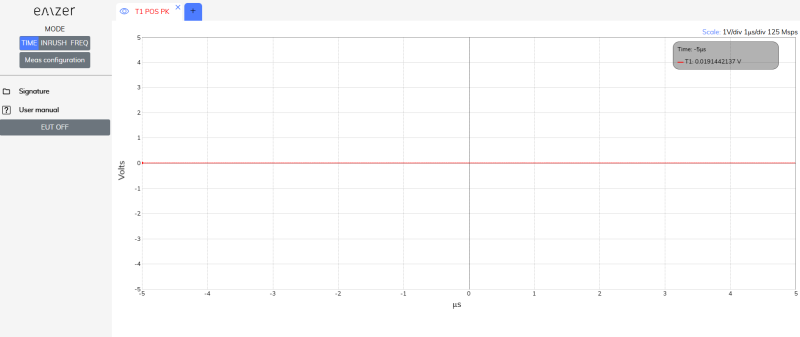
Figure 4. EMI FALCON main’s page.
3.12.2 Static Configuration
If the user wants to set the IP, it can be done in the configuration interface. To this end, click on the “Device Configuration” tab, and then “Network Configuration”. Alternatively, the same webpage is reachable by typing the following address in the URL field:
http://falcon-1234.local/ipconfig.php
The network configuration interface opens. By selecting the “Static IP configuration” option, an appearance similar to the interface shown in Figure 5 is obtained. The desired network configuration can be introduced following the described indications.
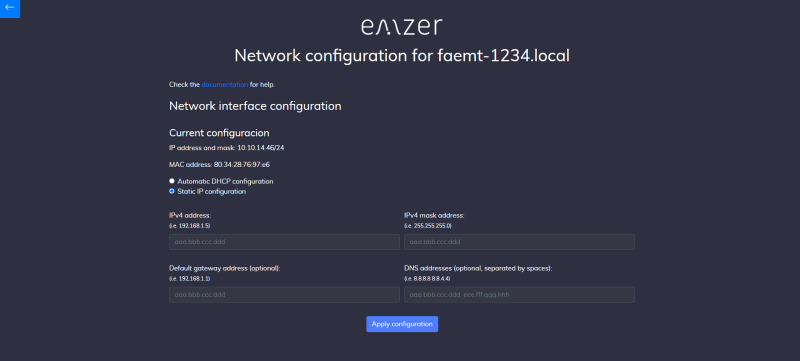
Figure 5. Network configuration interface.
Allowed static IP addresses are limited to class A and C.
| Table 2-1 Private IP Addresses | |||
|---|---|---|---|
| Class | Private Network | Subnet Mask | Address Range |
| A | 10.0.0.0 | 255.0.0.0 | 10.0.0.1 - 10.255.255.254 |
| C | 192.168.0.0 | 255.255.0.0 | 192.168.0.1 - 192.168.255.254 |
4. Operating Modes
The equipment has the capability to perform three types of measurements: Time Domain, Inrush, and Frequency Domain. Within each of these measurement types, the equipment can operate in two different modes:
- Measurement Mode – In this mode, the emissions of the EUT are obtained across different domains (frequency, time, and inrush). This mode allows for detailed measurement and data collection, which can later be used in the second mode. It is more versatile and complex, as it enables the user to configure and optimize the equipment for the desired measurements.
- Comparative Analysis Mode – This mode utilizes the configuration and measurements obtained in the previous step as a reference for conducting a comparative analysis with the current measurements of the EUT.
5. Frequency-Domain Operating Instructions
This section presents the instrument interface, outlines key parameters essential for proper configuration in frequency-domain mode, and explains its main functionalities.
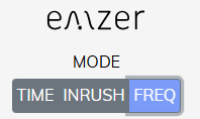
Figure 6. Frequency-domain mode.
5.1 Introduction
The EMI FALCON is connected using a web browser as described above. The first time a user connects to the EMI FALCON (or when connecting using a clean session), a measurement with the default configuration is provided: one single trace measuring channel 1 (POS), Span 30 Hz – 50 MHz, Peak detector, Ref. Level at 115 dBμV, automatic attenuation, among other configurations.
The interface of the web app is shown in Figure 7. This interface has three important blocks. The red one contains the Main Menu, where the function keys are displayed. Each function key opens a submenu with the Action List (orange block), that is, all those settings that the user can configure for that function key. Each modification will be reflected in the Measurement Plot (blue block).
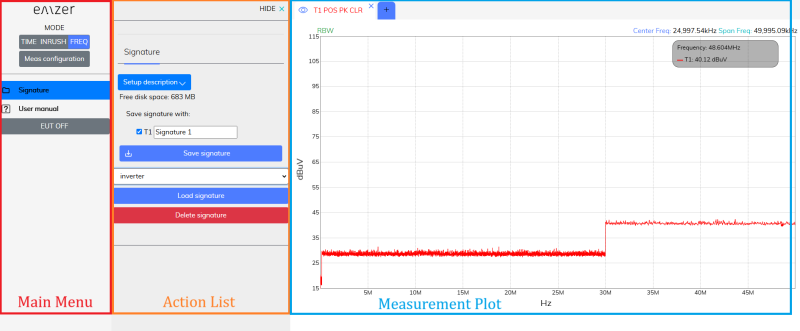
Figure 7. Web app interface.
5.2 Measurement Configuration
In order to use the advanced mode for a suitable measurement configuration, the button “Meas Configuration” has to be clicked.
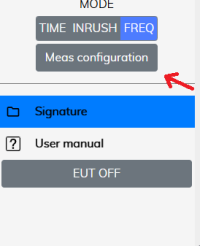
Figure 8. Measurement configuration.
When clicked, the advanced menu appears, as seen in Figure 9.
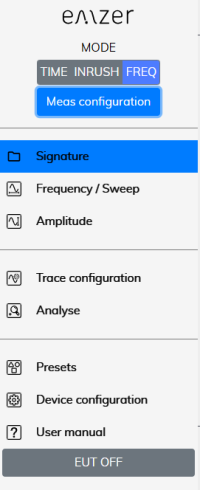
Figure 9. Advanced menu for a suitable measurement configuration.
The most relevant information regarding the measurement for each trace is provided on the trace tab, so the user can easily know what kind of measurement is currently configured. Information regarding the Center Frequency, Span and amplitude levels are reported on the top right corner.
If the user modifies the measurement configuration and closes the browser session, next time the user connects again to the EMI FALCON, the last configuration before closing is recovered.
Next Sections relate important considerations for the measurements and describe the relevant settings of the function keys.
5.3 Overload
For a correct measurement, be sure not to overload the EMI FALCON. Input attenuation and Gain must be properly configured considering the maximum amplitude expected at the input ports. Table 4-1 shows the maximum amplitude values that should be measured for each attenuator value to avoid distortion. If the signal surpasses this value, the EMI FALCON is saturated and will not present correct measurement values.
Important! Carefully consider that:
- Although EMI FALCON does not show any frequency bin with an amplitude value above the levels shown in Table 4-1, it may become saturated if the time-domain representation of the measured spectra is above them (saturation is produced in the ADC before processing the input signal). When this happens, a warning message is displayed in the measurement.
- Signals above 20 dBm will not be correctly measured in any case due to the activation of the transient limiters, clipping the input signal.
- Signals above 37 dBm (5 W) are not supported by the transient limiters and will damage the receivers.
- In case that an OVERLOAD indication occurs when using maximum attenuation and minimum Gain, it is necessary to add an external attenuator to carry on the measurement without overpassing the declared limit. The user can use the “External Loss Attenuation” option to compensate the additional losses.
| Table 4-1 Maximum amplitude values (50-Ω input and 10 dB of input attenuation) | ||
|---|---|---|
| Gain value (dB) | Maximum Amplitude (dBm) | Maximum Amplitude (dBμV) |
| 0 | 20 | 127 |
| 1 | 19 | 126 |
| 2 | 18 | 125 |
| 3 | 17 | 124 |
| 4 | 16 | 123 |
| 5 | 15 | 122 |
| 6 | 14 | 121 |
| 7 | 13 | 120 |
| 8 | 12 | 119 |
| 9 | 11 | 118 |
| 10 | 10 | 117 |
| 11 | 9 | 116 |
| 12 | 8 | 115 |
| 13 | 7 | 114 |
| 14 | 6 | 113 |
| 15 | 5 | 112 |
| 16 | 4 | 111 |
| 17 | 3 | 110 |
| 18 | 2 | 109 |
| 19 | 1 | 108 |
| 20 | 0 | 107 |
| 21 | -1 | 106 |
| 22 | -2 | 105 |
| 23 | -3 | 104 |
| 24 | -4 | 103 |
| 25 | -5 | 102 |
| 26 | -6 | 101 |
| 27 | -7 | 100 |
| 28 | -8 | 99 |
| 29 | -9 | 98 |
| 30 | -10 | 97 |
| 31 | -11 | 96 |
| 32 | -12 | 95 |
| 33 | -13 | 94 |
| 34 | -14 | 93 |
| 35 | -15 | 92 |
| 36 | -16 | 91 |
| 37 | -17 | 90 |
| 38 | -18 | 89 |
| 39 | -19 | 88 |
| 40 | -20 | 87 |
| 41 | -21 | 86 |
| 42 | -22 | 85 |
| 43 | -23 | 84 |
| 44 | -24 | 83 |
| 45 | -25 | 82 |
| 46 | -26 | 81 |
| 47 | -27 | 80 |
| 48 | -28 | 79 |
| 49 | -29 | 78 |
| 50 | -30 | 77 |
| 51 | -31 | 76 |
| 52 | -32 | 75 |
| 53 | -33 | 74 |
| 54 | -34 | 73 |
| 55 | -35 | 72 |
| 56 | -36 | 71 |
| 57 | -37 | 70 |
| 58 | -38 | 69 |
| 59 | -39 | 68 |
| 60 | -40 | 67 |
5.4 Reference Level
The Reference Level sets the top magnitude value of the Measurement Plot. It can be configured in the tab Amplitude from the Main Menu. If the Input Attenuator is configured in the Automatic mode, the Reference Level automatically fixes the Attenuator value according to Table 3-1. By moving the measured signal close to the Reference Level (without overpassing it and always avoiding an overload), the best possible exploitation of the ADC's dynamic range is accomplished, obtaining more accurate measurements.
If the Input Attenuator is not set to Automatic mode, the Reference Level setting is decoupled from the input gain, which means that the gain (or attenuation) remains constant; in such cases, changing the Reference Level only influences the representation of the signal on the display through numeric scaling.
5.5 Dwell Time
The dwell time can be found in the tab Sweep from the Main Menu. This value, expressed in seconds, defines the time that the detectors are measuring the input signal. Since all frequencies are measured simultaneously, the measurement time is equal to the dwell time. Therefore, a dwell time of 2 seconds means that the measurements are performed for 2 seconds. In addition, because the equipment is continuously measuring, the magnitudes are refreshed every 2 seconds.
5.6 Traces and Detectors
EMI FALCON has been designed to measure both lines (positive and negative) with a peak detector running in real time.
A new trace (or tab) can be opened clicking on the  symbol (located just after the name of the last opened trace). Up to six traces can be opened simultaneously. Although all active traces are displayed simultaneously, they can also be hidden by clicking on the eye symbol (located just before the name of the trace):
  .
.
5.6.1 Trace Configuration
All settings in the “Trace Configuration” menu apply only to the active trace (the selected one).
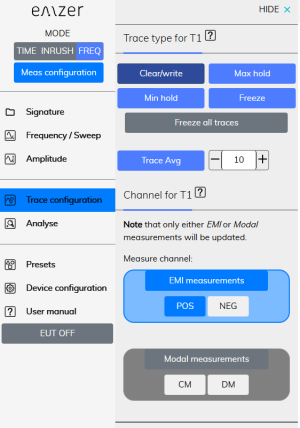
Figure 10. Trace configuration.
5.6.2 Peak Detector
This detector gives the maximum level observed in each measured spectral line during the configured measurement time (dwell time).
This detector is calibrated to give the root mean square (rms) value of an unmodulated sinusoidal signal.
For unmodulated signals, dwell time can be configured as low as possible. For modulated o pulsed signals, the dwell time must be configured to record at least one period or pulse of the signal.
5.7 RBW Filters
The Resolution Bandwidth is used to select the bandwidth of the measuring filter. It is found in the tab Frequency/Sweep from the Main Menu. The drop-down menu allows the user to choose from the filters listed in Table 4.2. The relationship between RBW and the measured bandwidth is also presented in the same table. These filters are mathematically modelled using digital techniques.
| Table 4-2 Relationship between RBW and the measured band's frequency range | |
|---|---|
| RBW | Frequency range |
| 10 Hz | 30 Hz - 1 kHz |
| 100 Hz | 1 kHz - 10 kHz |
| 1 kHz | 10 kHz - 150 kHz |
| 10 kHz | 150 kHz - 30 MHz |
| 100 kHz | 30 MHz - 50 MHz |
5.7.1 Single-Band Measurements
When an RBW filter is selected, measurements are performed only within the corresponding frequency band range.
5.7.2 Full-Band Measurements
When “Sweep all” is selected, measurements are performed across the entire bandwidth, automatically switching to the next filter for each frequency band.
5.8 DDS
The Direct Digital Synthesis (DDS) is a digital signal generator embedded in the FPGA, capable of generating sinusoidal signals at any frequency.
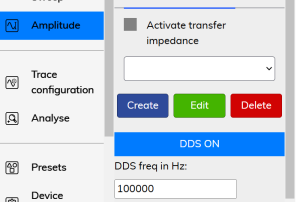
Figure 11. DDS activation.
When activated, the ADC signal entering the FPGA is disabled and replaced by the DDS output. This feature is useful for testing the digital section of the instrument in case of measurement issues.
5.9 Frequency-Domain Signatures
Once the measurement is fully configured, it can be saved as a signature in the “Signature” menu. Whenever this signature is loaded, the instrument automatically applies the same configuration, so that no other configuration needs to be applied. See the example below.
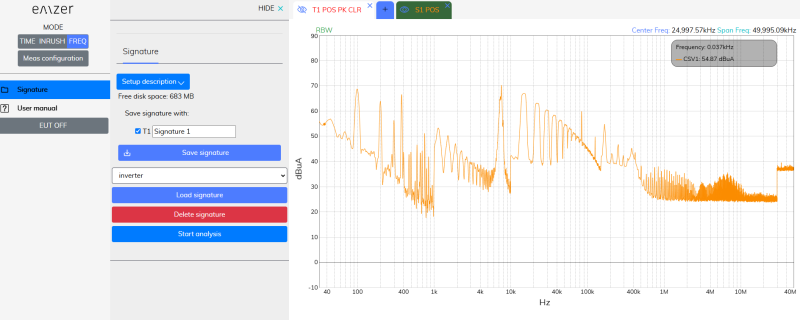
Figure 12. Signature in the frequency domain.
At this point, the “Start analysis” button appears, A function that analyses the measurement comparing it with the signature, and elaborates a preliminary report in a new browser window.
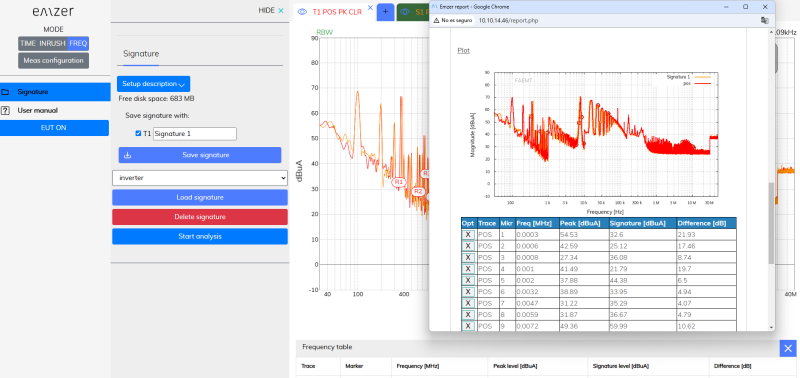
Figure 13. Report in the frequency domain.
In this new browser, the user can add additional information about the measurement and upload an image. Additional information of the measurement is displayed.
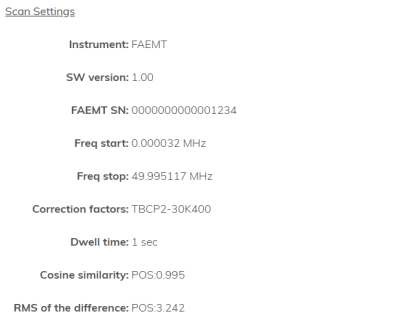
Figure 14. Additional information of the report.
The cosine similarity measures the similarity between two vectors of an inner product space, and it is computed as:
$cos(θ) = \frac{A·B}{||A||·||B||}$
The root mean square (RMS) of the difference is computed as:
$RMS = \sqrt{\frac{1}{N}\sum_{i=1}^{N}\left( x_{i} - y_{i}\right)^{^{2}}}$
Finally, the report shows the image of the measurement and an automatic list with those frequencies where the difference between measurement and signature is maximum. The user can remove peak emissions from the report if they are not desired.
Once the user has finished, the report can be downloaded in a pdf format.
5.10 EMI and Modal Measurements (Channel)
5.10.1 Single phase measurements
EMI FALCON can measure positive and negative simultaneously using the peak detector for each one. This is called here EMI measurements. Alternatively, modal measurements (that is, common-mode and differential-mode emissions) can also be done instead of positive and negative, using the same peak detector.
The selection between EMI and modal measurements can be done in the tab Trace Configuration from the Main Menu. POS and NEG are the positive and negative measurements respectively (that is, $V_{pos}$ and $V_{neg}$). CM and DM are the common mode and differential mode respectively (that is, $V_{CM}$ and $V_{DM}$). It should be noted that positive and negative measurements are only done when the “EMI measurement” button is selected. Otherwise, these measurements remain in a paused mode. In the same way, common-mode and differential-mode measurements are only done when the “Modal measurements” button is selected. Otherwise, these measurements remain in a paused mode. The reason for that is that the same peak detector are shared between the EMI and modal emissions, so that when one of them is selected, the other cannot be measured.
Modal measurements are computed as shown below:
$V_{CM} = \frac{V_{pos} + V_{neg}}{2}$,
$V_{DM} = \frac{V_{pos} - V_{neg}}{2}$.
5.11 Transfer Impedance of Current Probes in Frequency Domain
The transfer impedance of passive current probes can be entered and applied to the measurement in the “Amplitude” tab.
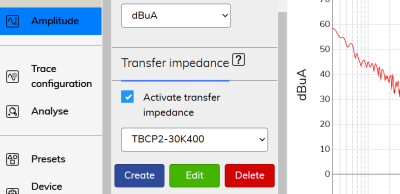
Figure 15. Transfer impedance.
Users can define a table specifying the transfer impedance at different frequencies, with at least two frequency points required. During measurements, the software interpolates the table to ensure proper compensation for each frequency bin.
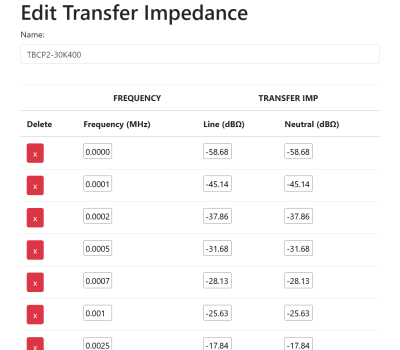
Figure 16. Transfer impedance edition.
To apply the transfer impedance in the measurement plot, enable the “Activate transfer impedance” option. When this option is selected, measurements are displayed in dBμA.
5.12 Utilities
5.12.1 Options overview
EMI FALCON interface has been designed to provide an optimal user experience and usability. To this end, all options have been grouped so that any measurement can be configured with the minimum number of clicks.
- Frequency/Sweep and Amplitude tabs group all options that affect all measurements (or traces) that are displayed simultaneously. By modifying either the frequency band, the start, center and stop frequency, the sweep and dwell time, the reference level, the input attenuator, the units or the external loss attenuation, all measurements will be updated accordingly.
- Trace configuration, on the other hand, groups all options that affect only the active trace. In this tab, the user can configure the trace type, the channel and the detector. Each trace can be configured independently of the other traces. The only exception is the EMI or Modal measurements selection.
- Analyse contains all those options that allow to obtain a deeper analysis of the measurement plot: Markers, Multi-markers, peak search and delta marker.
- Limits and Report allows plotting standardized (or, if desired, customized) emission limits to compare the measurements, and generating reports in pdf format.
- Save & Load allows exporting and importing measurements in different formats.
- Presets allows reloading measurement configurations.
- Device configuration provides information of the EMI FALCON such as MAC address, IP address, serial number, software version and temperatures. It allows modifying the interface colors, the network configuration or updating the device.
5.12.2 Zooming into the diagram
The user can zoom into the diagram to visualize the measurement results in greater detail.
This can be done in several ways:
- Using the soft keys “Zoom in” and “Zoom out”, that can be found in the Action List from the tab “Frequency”.
- Modifying the span value, in the Action List from the tab “Frequency”.
- Clicking directly in the Measurement plot with the left button of the mouse and, without releasing it, dragging the pointer horizontally (for a zoom into a frequency band) or vertically (for a zoom into an amplitude zone). Full span can be recovered by clicking twice on the Measurement plot.
5.12.3 Markers
Markers are available in the tab “Analyse”. To add a marker in the Measurement Plot, the user has either to write the frequency in the form of the Action List or select it by clicking on the desired position of the Measurement Plot or use the “Pk search” option that will look for the highest peak of the active measurement. Finally, click on the “New Marker” button to add the marker.
Normal markers and Multi-trace markers
There are two types of markers: normal markers and multi-trace markers. Normal markers are placed only on the active trace. Multi-trace markers are placed on all traces simultaneously.
Delta marker (Action List) allows to compare the distance in frequency and amplitude between two markers. Besides, a Delta Table is automatically shown below the measurement plot to show all amplitude marker deltas.
5.12.4 Presets
- Start with default settings: this option removes all current configurations and starts a new connection to the instrument with the default settings: a single tab, band B, reference level to 115 dBμV, EMI measurements on line terminal, clear/write and without markers nor limits.
- Save session settings: this option stores all current session information (detectors, traces, RBW, markers, reference level, sweep time, etc.). The information is stored in the EMI FALCON instrument.
5.12.5 Health Status and Self test
The instrument EMI FALCON has some tools that show the health status of the instrument. In Device Configuration → Health status, the instrument shows if there has been some kind of error in its internal communications (Figure 17). When the instrument is working properly, the four comms should show “0 errors”. Sporadic and low count errors could occur, but that is part of normal operation of the device, since they are detected and corrected. If the error count is high, that could effectively indicate a malfunctioning hardware issue. Please read below.
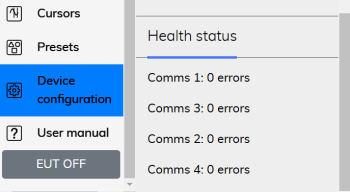
Figure 17. Health status section.
6. Time Domain and Inrush Operating Instructions
This section introduces the time domain and Inrush modes and explains its main utilities. The Time Domain mode is activated when clicking on the Time button, and the Inrush mode clicking on the Inrush button.
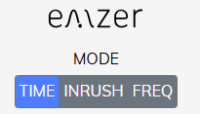
Figure 18. Time Domain button.
6.1 Introduction
The EMI FALCON Time mode is connected using a web browser as described above. The first time a user connects to the EMI FALCON (or when connecting using the “start with default settings” option), a measurement with the default configuration is provided: one single trace measuring channel 1 (POS), Scale 1V/div (vertical) and 1μ/division (horizontal), among other configurations. The interface of the web browser is shown in Figure 19.
Figure 19. Web browser interface.
The most relevant information regarding the measurement for each trace is provided in the trace tab. Information regarding the scale and sampling frequency are reported on the top right corner.
If the user modifies the measurement configuration and closes the session, the next time the user connects again to the EMI FALCON, the last configuration before closing is recovered.
Next Sections relate important considerations for the measurements and describe the relevant settings of the function keys.
6.2 Scale
The Scale menu allows to configure the instrument for a suitable measurement. The user can select the amplitude and time division factors.
Important! The main difference between the Time mode and the Inrush mode is the sampling frequency.
The sampling frequencies are shown in Table 5-1:
| Table 6-1 Relationship between time-division factor and sampling frequency | |
|---|---|
| Mode | Sampling Frequency |
| Time domain | 125 Msps |
| Inrush | 5 Msps |
6.3 Trigger
The trigger determines when the acquisition system starts capturing data. It helps stabilize the displayed waveform and detect when a signal reaches a specific voltage level. To activate the trigger, navigate to the Trigger menu and click the trigger button. A red horizontal cursor indicates the voltage level that the waveform must reach to initiate the capture (Figure 20). This level can be adjusted by dragging the cursor with the mouse or entering the desired value in the Action List column. On the time axis, the trigger is fixed at 0 s. For time-domain measurements, there is a pre-trigger margin of 123 μs, while in inrush mode, the margin is approximately 3 ms.
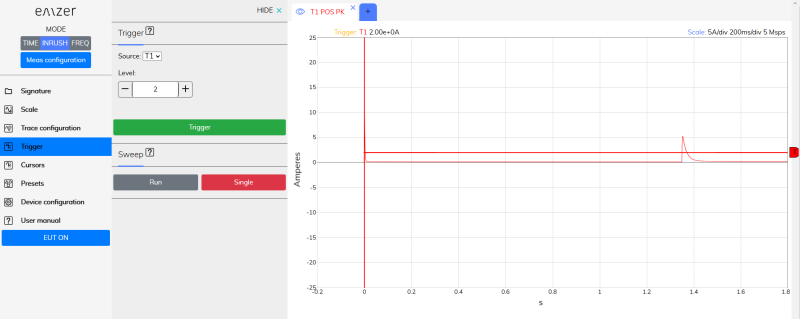
Figure 20. Data capture using the trigger option.
6.4 Cursors
Cursors enable users to manually identify points on a scope trace. Each dimension has two cursors, allowing measurement of vertical or horizontal differences. The amplitude at each cursor position, relative to the channel’s offset, is displayed alongside the difference between values, labeled as ΔCursors. The horizontal readout field also shows the corresponding time difference, also designated as ΔCursors. Additionally, the total charge and the signal slope between the two vertical cursors are provided.
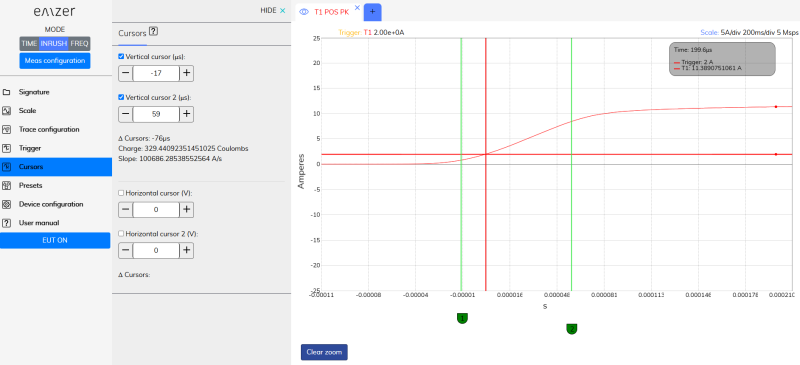
Figure 21. Cursors option.
The charge in Coulombs is computed integrating the current over time with:
$Q = \int_{t0}^{t1}I\left( t \right)dt$
where:
- Q is the total charge in Coulombs,
- I(t) is the current as a function of time in Amperes,
- t0 is the starting time of the inrush current, and
- t1 is the ending time of the inrush current.
The software uses the trapezoidal rule to integrate the current over time.
The slope is computed with:
$slope = \frac{y_2-y_1}{x_2-x_1}$
6.5 Transfer Impedance of Current Probes in Time Domain and Inrush
The transfer impedance of active current probes can be entered and applied to the measurement in the “Scale” tab.
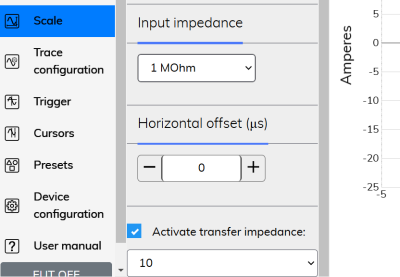
Figure 22. Transfer impedance in time domain and inrush.
Users can select between three values: 1, 10 and 100. To apply the transfer impedance in the measurement plot, enable the “Activate transfer impedance” option. When this option is selected, measurements are displayed in Amperes.
6.6 Time-Domain and Inrush Signatures
Once the measurement is fully configured, it can be saved as a signature in the “Signature” menu. Whenever this signature is loaded, the instrument automatically applies the same configuration, so that any other configuration needs to be applied. See the example below.
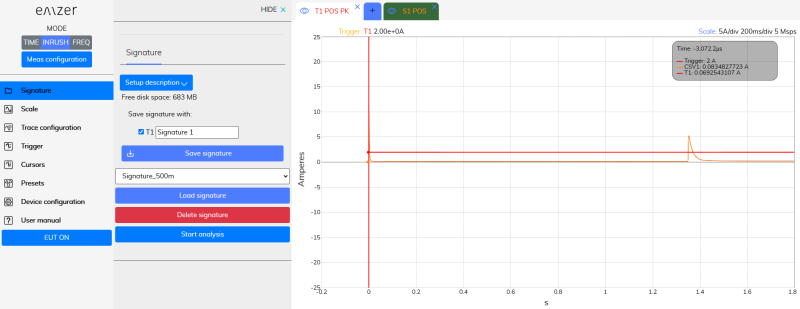
Figure 23. Signature in the time domain and inrush.
At this point, the “Start analysis” button appears, A function that analyses the measurement comparing it with the signature, and elaborates a preliminary report in a new browser.
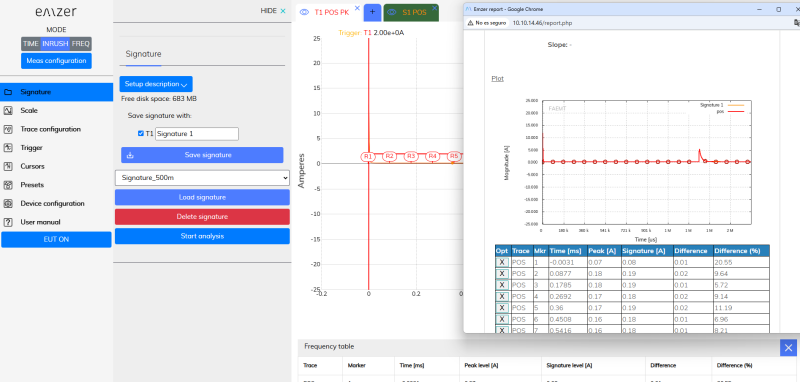
Figure 24. Report in the frequency domain.
In this new browser, the user can add additional information about the measurement and upload an image. Additional information of the measurement is displayed.
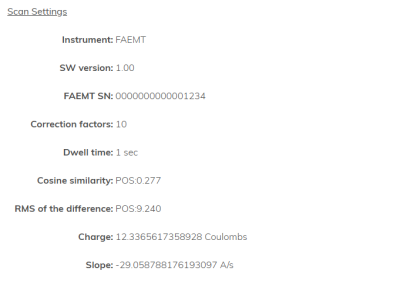
Figure 25. Additional information of the report.
The cosine similarity measures the similarity between two vectors of an inner product space, and it is computed as:
$cos(θ) = \frac{A·B}{||A||·||B||}$
The root mean square (RMS) of the difference is computed as:
$RMS = \sqrt{\frac{1}{N}\sum_{i=1}^{N}\left( x_{i} - y_{i}\right)^{^{2}}}$
The slope and charge are also displayed if the vertical cursors are active.
Finally, the report shows the image of the measurement and an automatic list with those frequencies where the difference between measurement and signature is maximum. The user can remove peak emissions from the report if they are not desired.
Once the user has finished, the report can be downloaded in a pdf format.
7. Instrument
The block diagram of the EMI FALCAON instrument can be seen below:
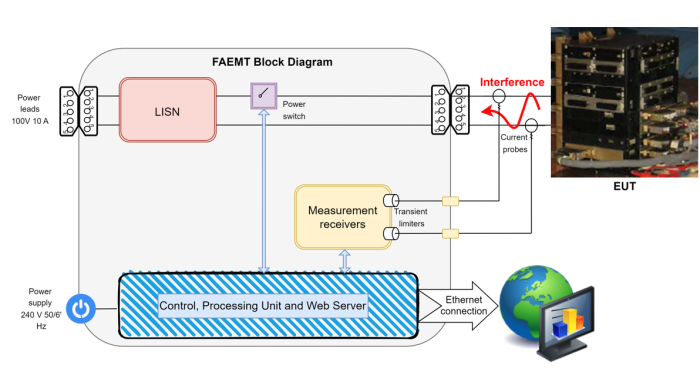
Figure 26. EMI FALCON instrument blosck diagram.
8. LISN
The LISN has been designed according to ADS specs.
8.1 Schematics
The schematics of the LISN can be seen below:
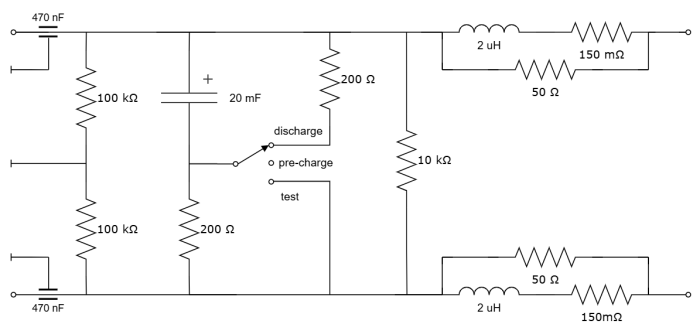
Figure 27. Schematics of the LISN.
- The “pre-charge” position is the position during test setup connections, before the test bench powers ON the EUT.
- The “test” position is activated during the tests.
- The “discharge” position is activated at the end of the tests, or after a EMI FALCON supply shut down (safety procedure).
8.2 Specifications
- DC current: 10Arms (indicated in current CE specs).
- PK current: 30A (in inrush specs).
- Expected MAX level of CE emissions [dBμA]:
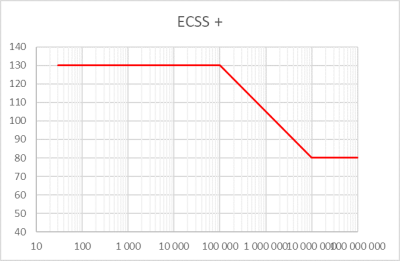
Figure 28. Specifications of the LISN.
9. Power Switch
The switch block is designed to allow the signal to pass through two different paths:
- Low-Loss Path (Mechanical Relays) – This path is optimized for minimal signal loss, utilizing mechanical relays to ensure high signal integrity.
- Inrush Testing Path (MOSFET Switching) – This path is specifically designed for inrush current testing. Here, connection and disconnection are managed through MOSFETs, which help to smooth the voltage ramp-up during connection, reducing abrupt transitions.
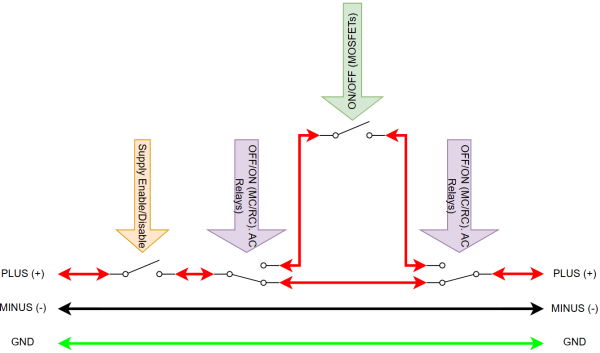
Figure 29. Power switch schematics.
10. Applications
10.1 Conducted Modal Emissions
All electric and electronic devices are potential generators of EMI. The term EMI thus refers to the unintended electromagnetic energy emitted by a device which propagates itself along cables or through the air and couples with other devices that are present in the surroundings. These electromagnetic fields (conducted or radiated interference) may generate interfering currents and voltages into nearby equipment and therefore can cause possible malfunctions. In order to prevent and control such interference there are a number of national and international standards, like IEC, which specifies limits and methods of tests. Moreover, within the European Union the application of several European Norms on Electromagnetic Compatibility is enforced by law and therefore the commercialization and use of all the electric and electronic equipment is subject to the measurement of the EMC characteristics, which must be within well-defined limits.
The conducted emissions are the noise currents and voltages that propagate through the power cord or harness to other components/systems or power grid. The EMI currents (or voltages) of the two conductors relative to each other and with reference to the ground form a vector system where two kinds of currents (or voltages) are present. They are:
- The differential-mode noise (DM), defined as the noise that appears across power supply lines and is in series with the power supply line, and the noise current flows in the same direction as the power supply current (Figure 30.a).
- The common-mode noise (CM), defined as the noise current that has leaked via a stray capacitance through ground and returns to the power supply line (Figure 30.b).
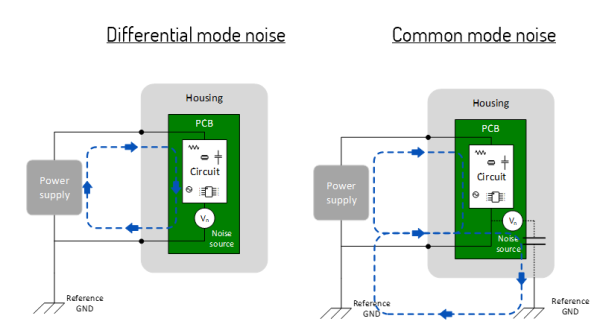
Figure 30. Modal definition of interference: (a) DM. (b) CM.
11. Maintenance
Maintenance of the equipment is limited to external components such as cables.
During operation, inside the equipment there are DANGEROUS voltages that could be contacted. To prevent electrical shock, do not open the equipment.
Clean the exterior of the equipment using a damp cloth and mild cleaner. Always unplug the unit before cleaning.
Product may be opened only by authorized, specially trained personnel. Before performing any work on the unit, this must be disconnected from the mains. Only technical personnel authorized by EMZER can perform any adjustments, replacement of parts or repair.
12. Disposal
This equipment is designed and manufactured with materials and components that can be recycled minimizing the environmental footprint.
A product that is labeled with a crossed-out wheeled bin symbol means it is covered by the European Directive 2012/19/EU and cannot be disposed of in normal household waste at the end of its life.

Figure 31. Label according to EU WEEE directive.
Please act according to your local rules. The correct disposal of your old products will help prevent potential negative consequences for the environment and human health.
13. Troubleshooting Guide
Problems with MDNS
To make the connection to the EMI FALCON device as easy as possible, the protocol MDNS is used. Thanks to it, the user only needs to type the following address in the URL field for the connection:
http://falcon-1234.local/
In some specific scenarios, the MDNS can fail, obtaining something similar to:
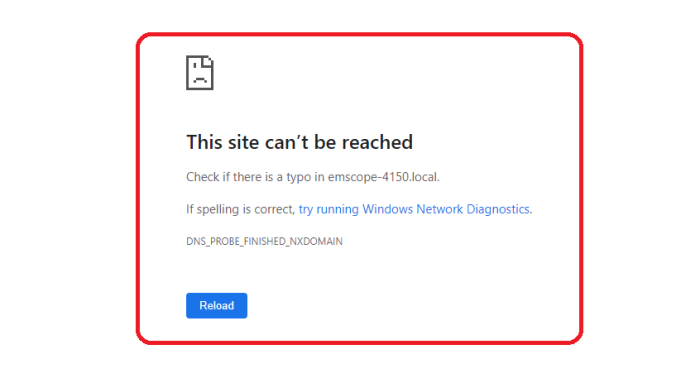
Figure 32. Web text shown when EMI FALCON is not reached.
There are multiple reasons for this behavior. To overcome this problem, please, follow the steps below:
- Check that your EMI FALCON is properly connected. The instrument must be connected to a LAN or directly to the PC using an Ethernet wire.
- Check that your EMI FALCON is switched on. The startup lasts approximately one minute. Once it has finished, the leftmost LED is fixed green, the center LED is flashing yellow, and the rightmost LED is fixed green as well.
If the EMI FALCON is properly connected and switched on, but it cannot be reached yet, try the following steps:
- Keeping the EMI FALCON switched on, restart the PC. Windows usually only updates the MDNS table when it starts. After restarting the PC, try to connect to the EMI FALCON using the MDNS address.
- If the previous step does not solve the connection problems, try connecting to the EMI FALCON using its IP address. For instance: http://10.30.0.171/
- If the IP address is not known, install the Bonjour software. With this software, it is possible to check if the EMI FALCON’s web service is available and, if so, which IP address it has. Then, try to connect directly using the IP address (previous step).
Having a LAN with a proxy server can be a reason to reach the EMI FALCON when using the IP but not when using the MDNS address. To overcome this problem, please read the following Section.
How to Bypass Proxy Server for Local Addresses in Windows 10
In case of using Windows 10 connected to a LAN with a proxy server, the MDNS will not work (only works directly writing the IP address of the EMI FALCON in the web browser). Windows does not exclude the local website addresses like intranet or localhost from proxy by default. To bypass the proxy, follow the steps of one of the options below:
Using Internet Options
- Press “Win + E” shortcut keys to open File Explorer.
- Type “control panel” in the address bar and press enter key to open Control Panel app.
- Change the “View by” option to “Category” to view the details.
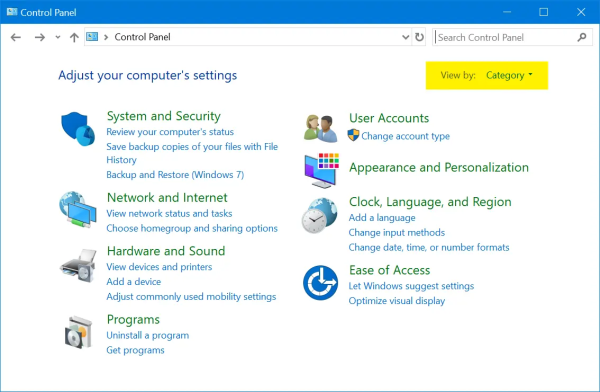
Figure 33. Control Panel Category View.
- Click on “Network and Internet” option and then click on “Internet Options”.
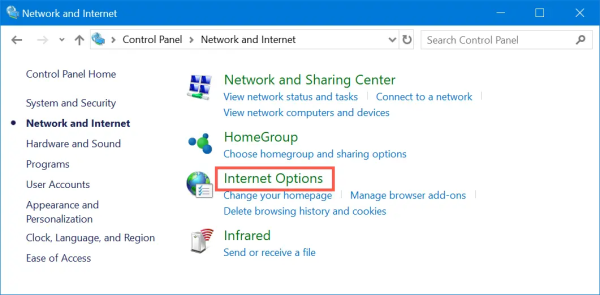
Figure 34. Open Internet Options from Control Panel.
- Alternatively, you can use Windows Search box to search “internet options” and open the Internet Properties dialog box.
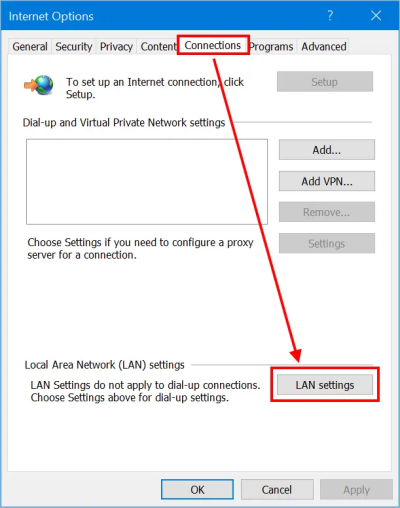
Figure 35. LAN Settings in Windows 10.
- Go to “Connections” tab and click on “LAN settings” button. This will open “Local Area Network (LAN) Settings” pop-up. Enable “Use a proxy server for your LAN” check box to enter the IP address and port of your proxy server.
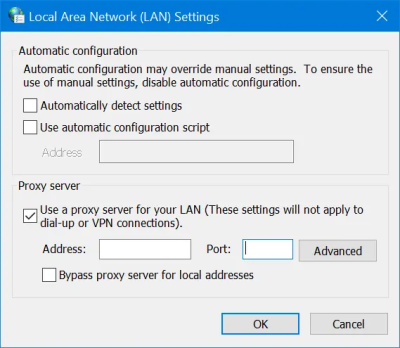
Figure 36. Setup Proxy Server in Windows 10.
- Now that you have setup a proxy server and all network from your computer will go through the proxy. For providing exception or bypassing your local intranet website addresses, enable “Bypass proxy server for local addresses” check box and click on “Advanced” button.
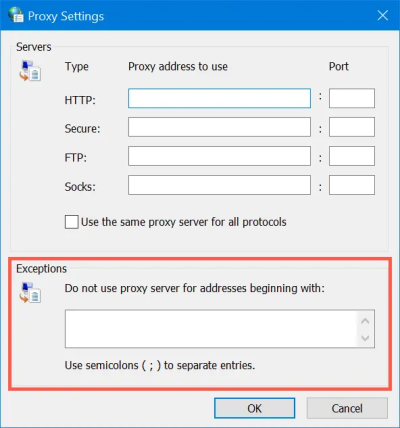
Figure 37. Provide Exceptions in Proxy.
- Under “Exceptions” box, type all the website addresses you do not want to use proxy. Use semicolon to separate each address you want to exclude. Click “OK” to apply your changes. In this case: http://falcon-1234.local/, or just “falcon”.
Using Settings App
- Press “Win + I keys to open the Windows Settings app and go to “Network & Internet” section.
- Go to “Proxy” section and enable “Use a proxy server” option under “Manual proxy setup” section.
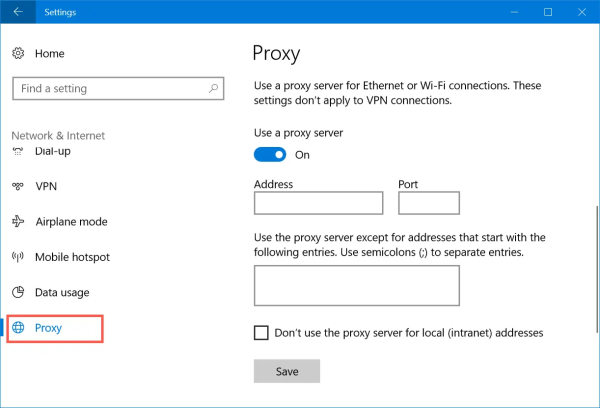
Figure 38. Manual Proxy Server Setup.
- Type the addresses in the text box to exclude them from proxy access. In this case: http://falcon-1234.local/, or just “falcon”.
- Enable the checkbox “Don’t use the proxy server for local (intranet) addresses” option.
- Click “Save” button to save your changes.
Using Firefox Network Settings
All the browsers like Chrome, Edge and IE use the computer’s network settings for proxy. However, Firefox has standalone browser settings that allow you to add proxy and exceptions within the browser. Remember, this method is effective only within Firefox browser and your computer’s network will still follow the default settings from Internet Options.
- Go to “about:preferences” page, scroll down to “Network Settings” and click on the “Settings…” button.
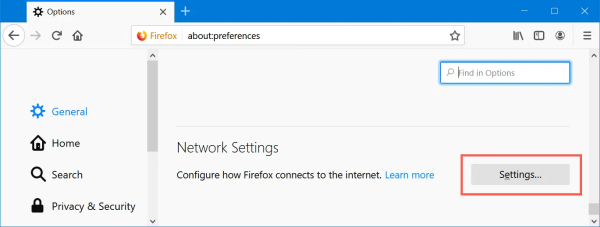
Figure 39. Firefox Network Settings.
- This will open “Connection Settings” pop-up within Firefox.
- Choose either manual or automatic proxy configuration option.
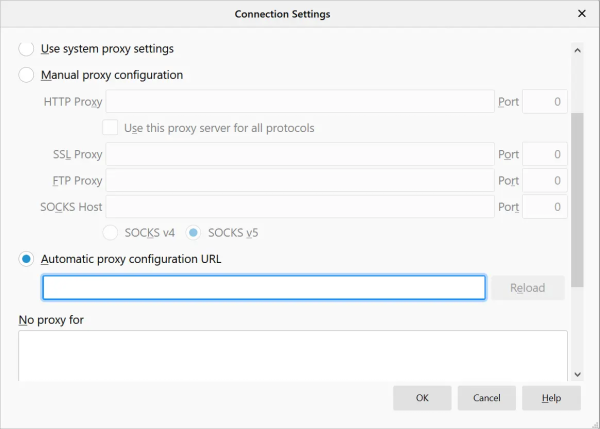
Figure 40. Setup Proxy in Mozilla Firefox.
- Type the exception for local and other website addresses under “No proxy for” text box. In this case: http://falcon-1234.local/, or just “falcon”.
- Click “OK” to save your changes.
Return for Repair form
Dear Customer,
Thank you for purchasing an EMZER’s product. You now own a high-quality instrument that will give you many years of reliable service. EMZER recognizes the importance of the Customer as reason of existence; in this view, any comment and suggestion you would like to submit to the attention of our service organization is kept in great consideration. Moreover, we are continuously improving our quality, but we know this is a never-ending process. We would be glad if our present efforts are pleasing you. Should one of your pieces of EMZER equipment need servicing you can help us serve you more effectively filling out this card and enclosing it with the product. Nevertheless, even this product will eventually become obsolete. When that time comes, please remember that electronic equipment must be disposed of in accordance with local regulations. This product conforms to the WEEE Directive of the European Union (2002/96/EC) and belongs to Category 9 (Monitoring and Control Instruments). You can return the instrument to us free of charge for proper environment friendly disposal. You can obtain further information from your local EMZER Sales Partner or by visiting our website at www.emzer.com.
Service needed
- Calibration only
- Repair
- Repair & Calibration
- Certified Calibration
- Other
Company:
Address:
Technical contact person:
Phone number:
Equipment Model:
Serial Number:
Accessories returned with unit:
- None
- Cable(s)
- Power cable
- Other:
Observed symptoms/problems: